
Getting Started
Install Order Workspace and create your first internal order workflow.

Fields & Orders
Organize and find Workspace information in WooCommerce Orders.

Order Workspace Pro
Set up Pro and learn the tools that speed up everyday order processing.

Help & Maintenance
Find compatibility, update, data and troubleshooting information.
Getting Started
Install Order Workspace, choose optional starter fields, or create the internal order fields your WooCommerce workflow needs.
Installation
- Make sure WooCommerce is installed and active.
- Go to Plugins → Add New in your WordPress admin.
- Search for Order Workspace for WooCommerce.
- Install and activate the plugin.
- Go to WooCommerce → Order Workspace to configure your fields.
Optional initial configuration
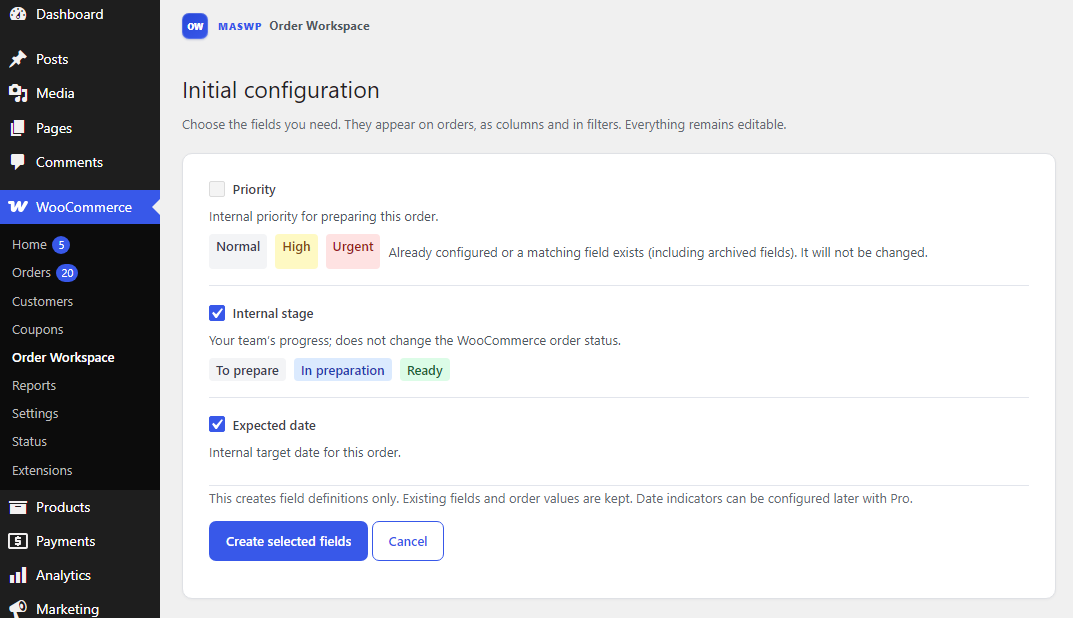
Start with a suggested set of fields, or skip this step and create your own.- Go to WooCommerce → Order Workspace.
- Click Use initial configuration.
- Choose the fields you need:
- Priority — identify orders that need attention.
- Internal stage — track your team’s progress.
- Expected date — record an internal target date.
- Click Create selected fields.
- Customize their names, options, colors and visibility whenever needed.
 Internal stage is separate from the WooCommerce order status.
Updating an internal stage does not change the order’s status.
Internal stage is separate from the WooCommerce order status.
Updating an internal stage does not change the order’s status.
Creating your first field
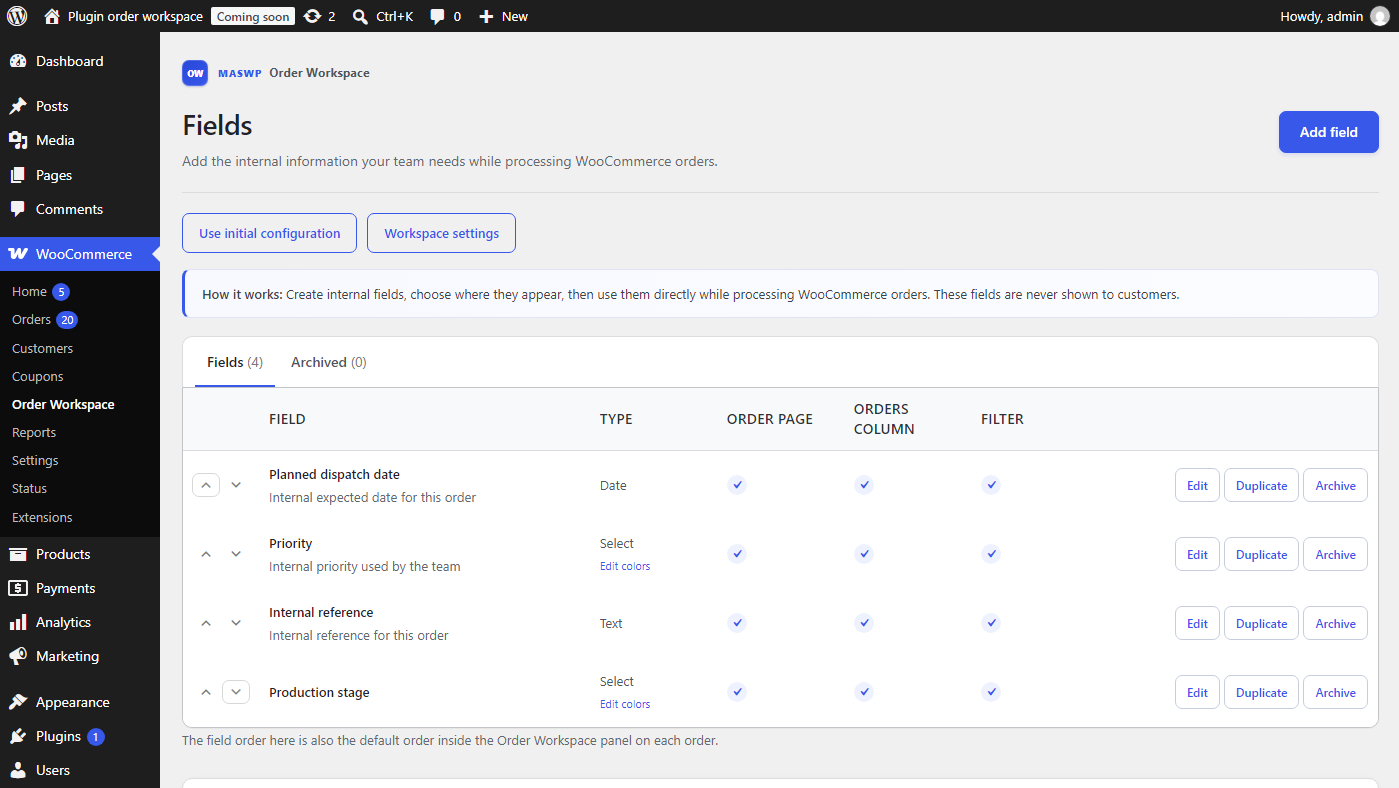
Fields let you add structured internal information to WooCommerce orders, such as Priority, Supplier, Expected date or Internal reference.- Go to WooCommerce → Order Workspace.
- Click Add field.
- Enter a clear field name and an optional description.
- Choose the field type: Text, Long text, Number, Select, Yes / No or Date.
- For a Select field, add its options and choose optional colors. Yes / No values can also have colors.
- Choose where the field should appear: on the order page, as an Orders column or as a filter, where supported.
- Click Create field.
Fields & Orders
Use Workspace fields throughout WooCommerce Orders to keep internal information organized, readable and easy to find.
Field Types
Order Workspace includes six field types:- Text — short text values, such as an internal reference or supplier name.
- Long text — longer internal notes.
- Number — numeric information.
- Select — choose from a predefined list of options, with optional colors.
- Yes / No — a simple yes-or-no value, with optional colors.
- Date — dates such as a planned dispatch date or an internal target date.
Colors for Select and Yes / No fields
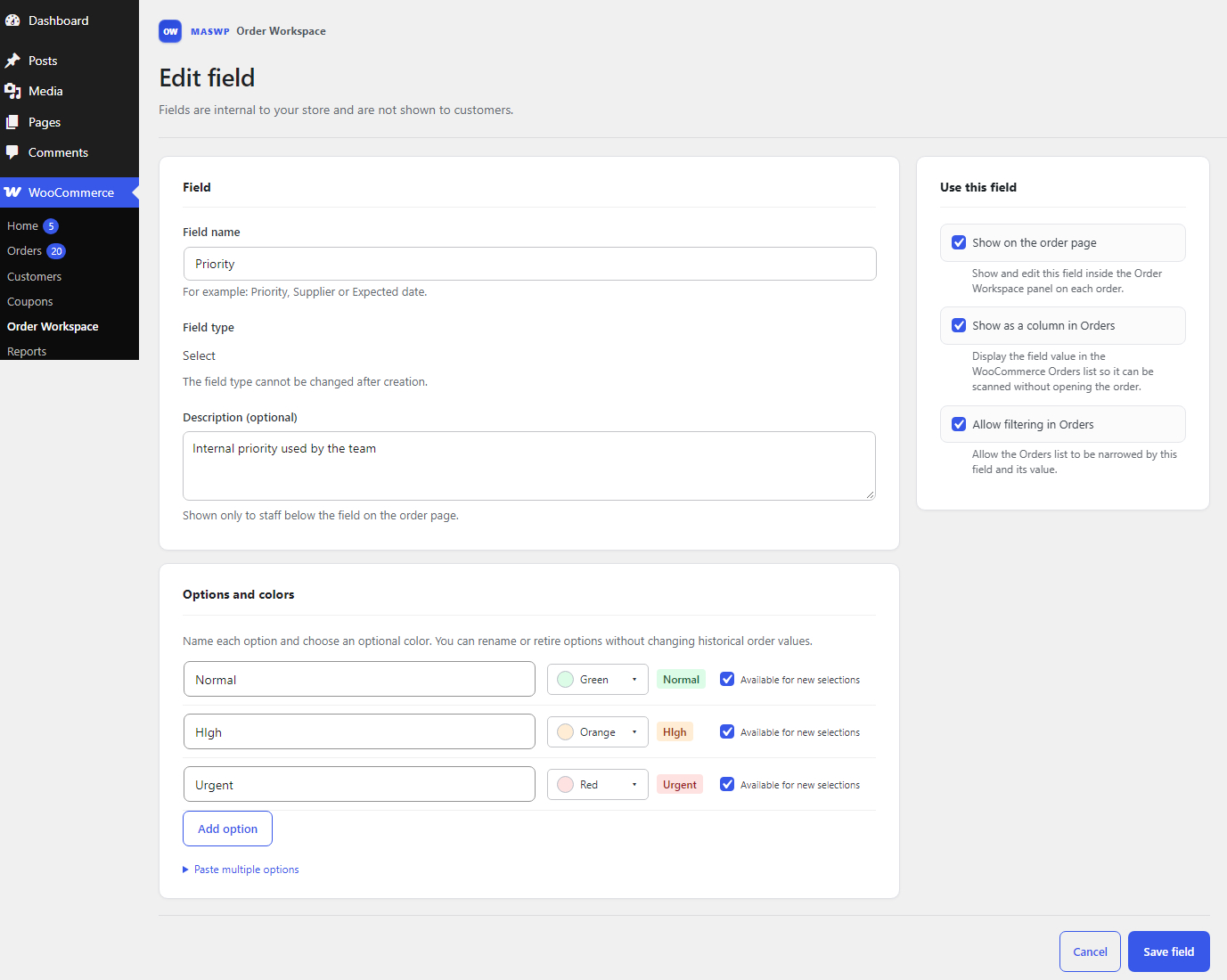
Add optional colors to make priorities, internal stages and other values easier to scan. Value colors are included in Order Workspace Free.- For Select fields, configure option names and colors together when creating or editing the field.
- For Yes / No fields, choose an optional color for each value.
- Use suggested colors or choose a custom color, then check the preview.
Order page
Enable Show on the order page to display a field in the Order Workspace panel inside each WooCommerce order. Enter or change the field values, then click Update on the order to save your changes. Color previews below editable controls show the saved value. Workspace fields are internal to your store and are never shown to customers.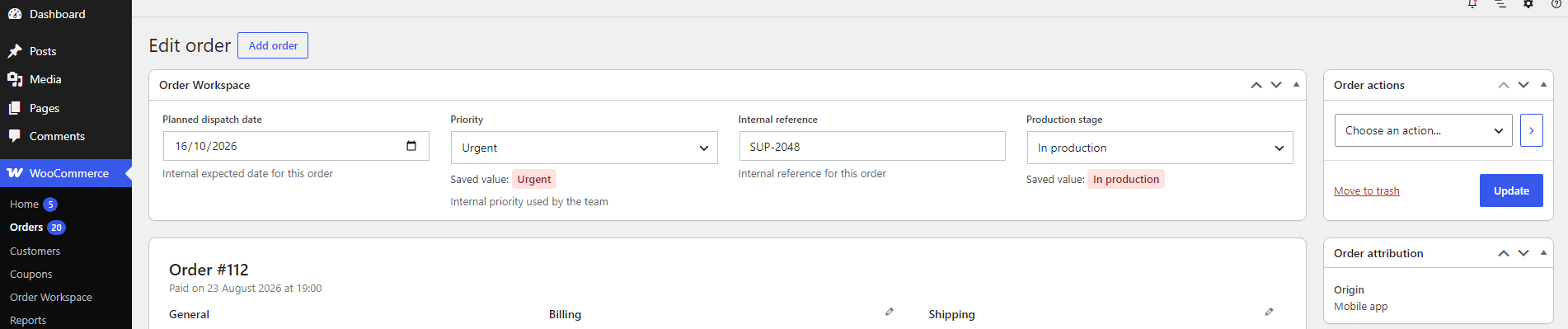
Editing by order status
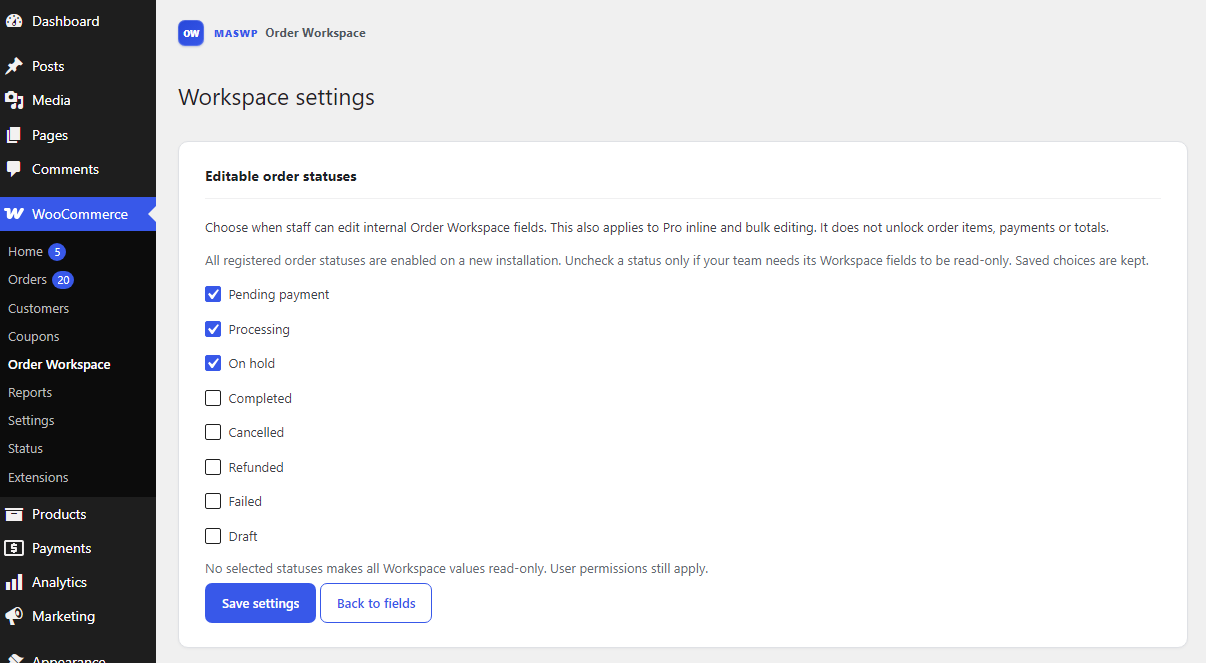
Go to WooCommerce → Order Workspace → Workspace settings to choose the order statuses in which your team can edit Workspace values.- New installations: all registered order statuses are enabled for Workspace editing.
- Existing installations: previously saved choices are preserved.
- Uncheck a status to make Workspace values read-only on orders with that status.
- Selecting no statuses makes Workspace values read-only on all orders.
Orders columns
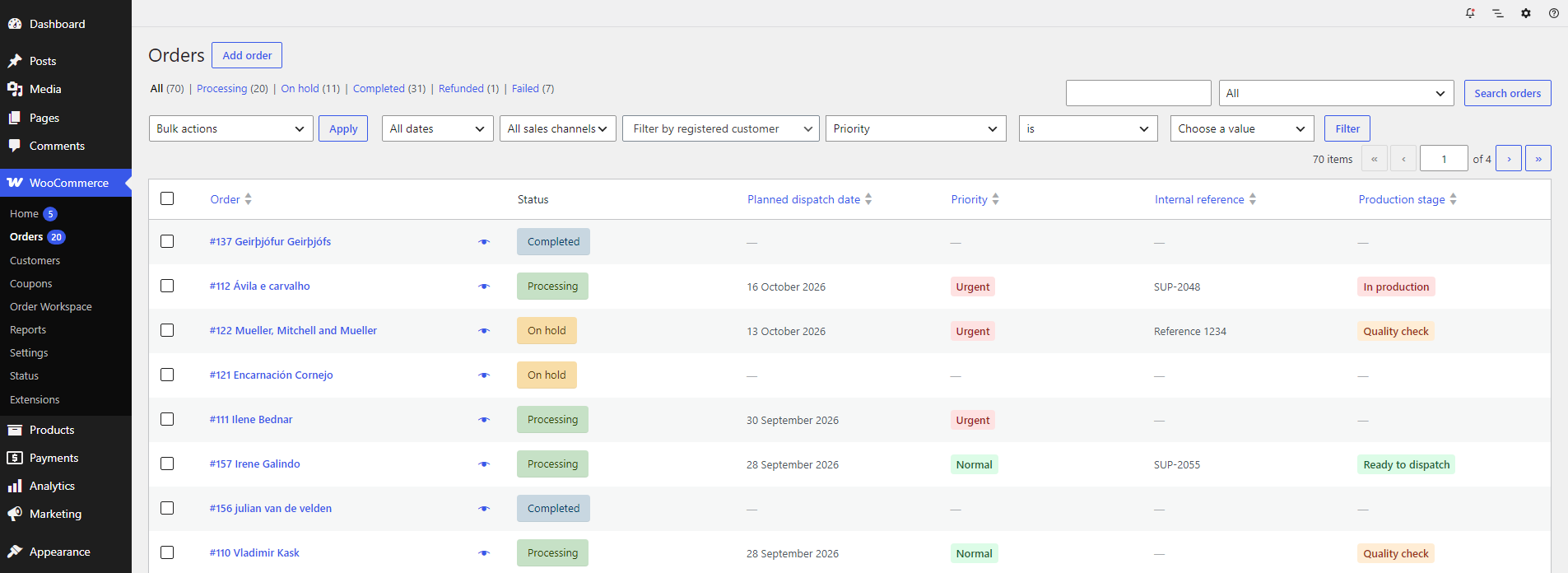
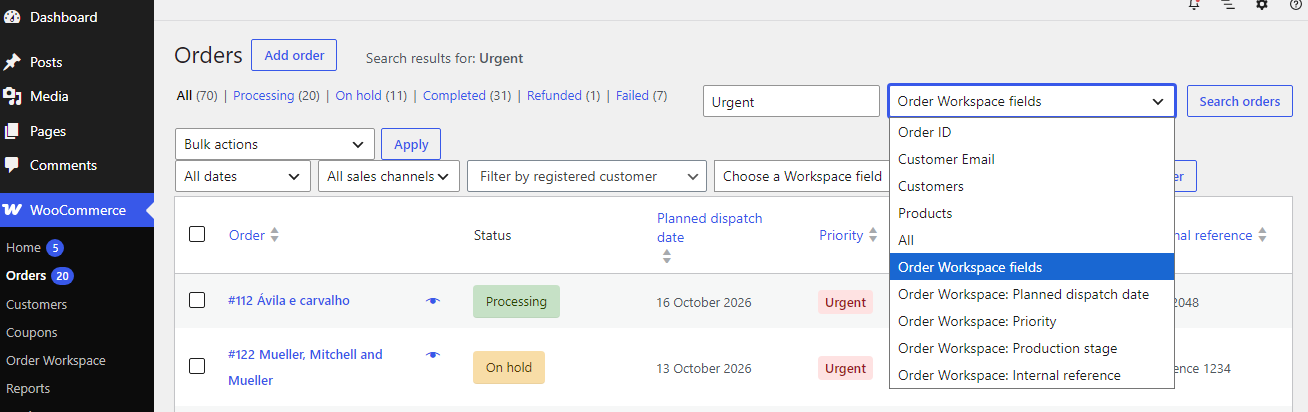
Enable Show as a column in Orders to display a field in the native WooCommerce Orders list. Your team can review internal information without opening each order. Text, Number, Select, Yes / No and Date columns support sorting. Click a supported column heading to change the sort order. Select and Yes / No values display their configured colors. Pro can also display date indicators when enabled for a Date field.Searching Workspace values
Workspace values can be searched from the WooCommerce Orders toolbar.- Choose Order Workspace fields to search across all Workspace fields.
- Choose a named Order Workspace field to search that field only.
Basic filtering
Order Workspace Free provides a basic Workspace field filter to help you focus on matching orders.- Enable Allow filtering in Orders for a supported field.
- Open WooCommerce → Orders.
- Choose the Workspace field, condition and value in the toolbar.
- Click Filter.
Duplicate, Archive & Restore
Reorder fields to organize your workflow. The field order also determines their default order in the Workspace panel on individual orders. Duplicate a field to reuse a similar definition instead of starting from scratch. Archive a field to remove it from active use while preserving its stored order values. Open the Archived tab and click Restore to make it active again.Managing Select options
Rename options or change their colors as your workflow evolves. Renaming an option preserves its stored identity and existing order values. Disable Available for new selections to retire an option. Existing orders keep their saved value, while the option is no longer offered for new selections.Permanent deletion
Delete permanently is a separate action for archived fields. It removes the field and its stored order values. Use Archive when you only need to remove a field from active use.Order Workspace Pro
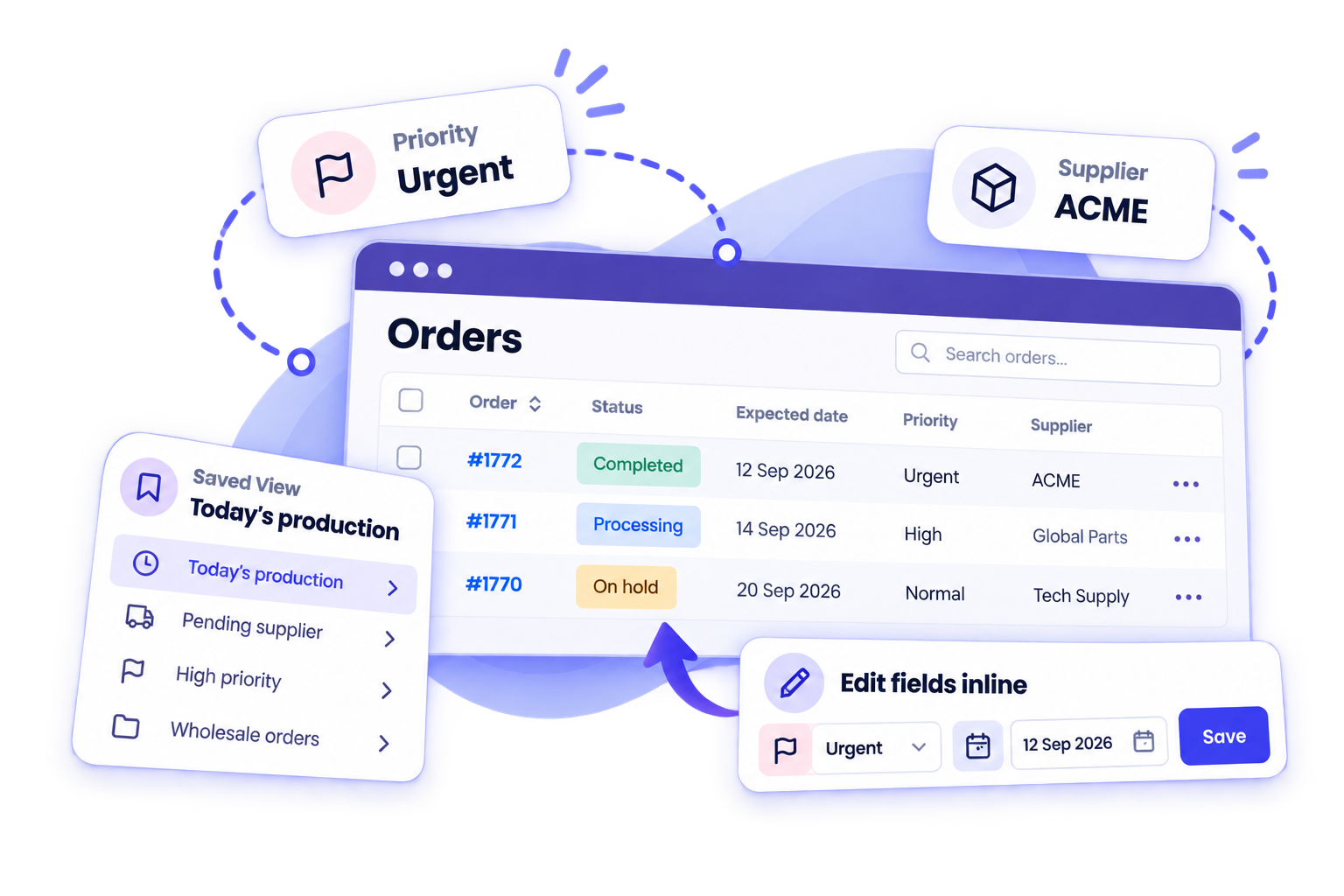
Order Workspace Pro extends Free with faster editing, combined filters, personal and shared views, date indicators and working-list exports.
Installing Pro
- Install and activate Order Workspace Free 1.2.0 or later and WooCommerce.
- Go to Plugins → Add New → Upload Plugin.
- Upload the Order Workspace Pro ZIP and install it.
- Activate Order Workspace Pro.
- Complete the license activation when prompted.
License activation
Activate your Pro license using the license setup shown after activation. License, subscription and account management are handled through Freemius. Pro updates and support are included while your license is active.Inline Editing
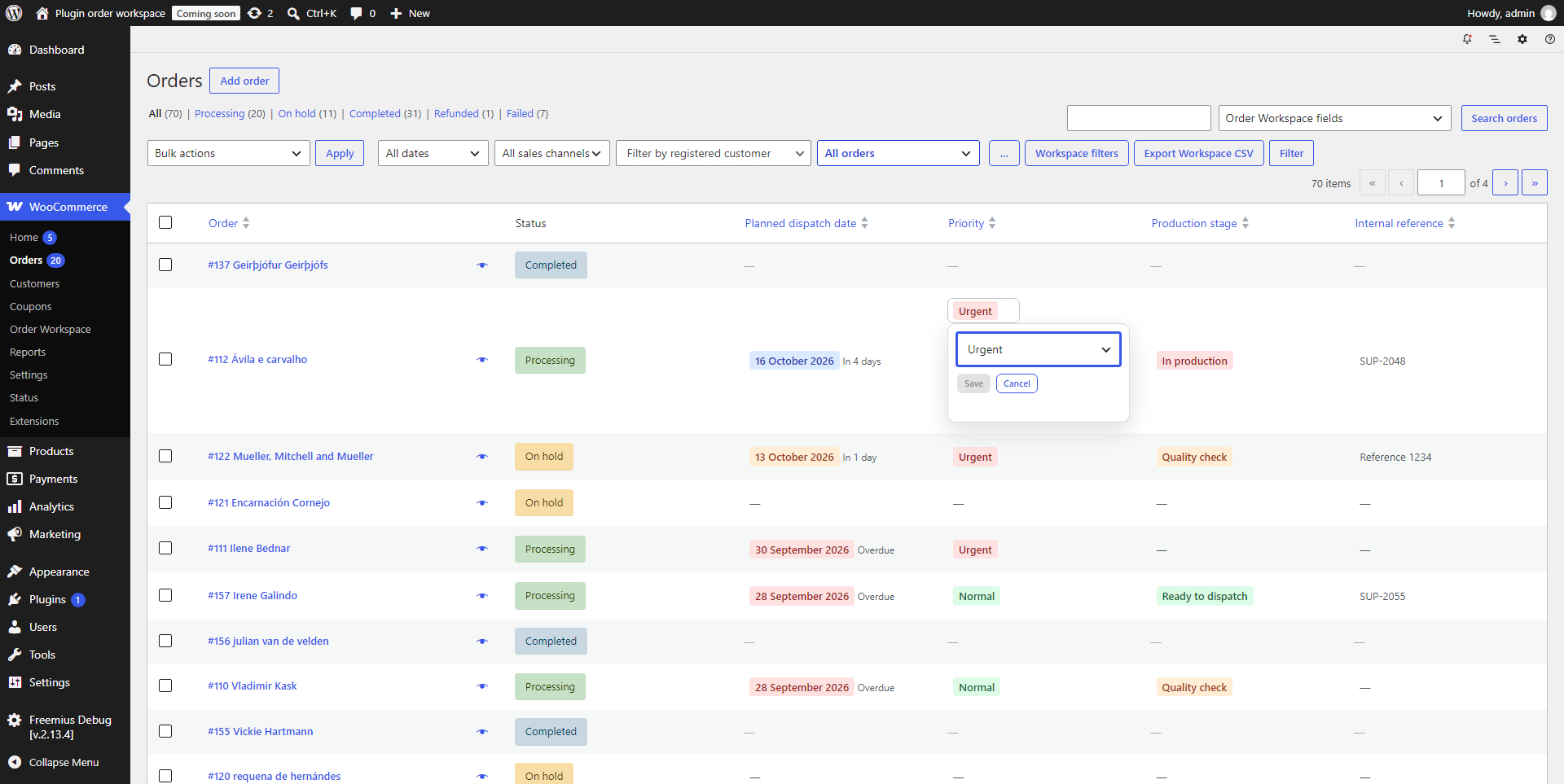
Update supported Workspace values directly from the WooCommerce Orders list without opening each order.- Go to WooCommerce → Orders.
- Open the inline editor for a Workspace value.
- Enter or select a different value.
- Click Save, or Cancel to discard the change.
Bulk Editing
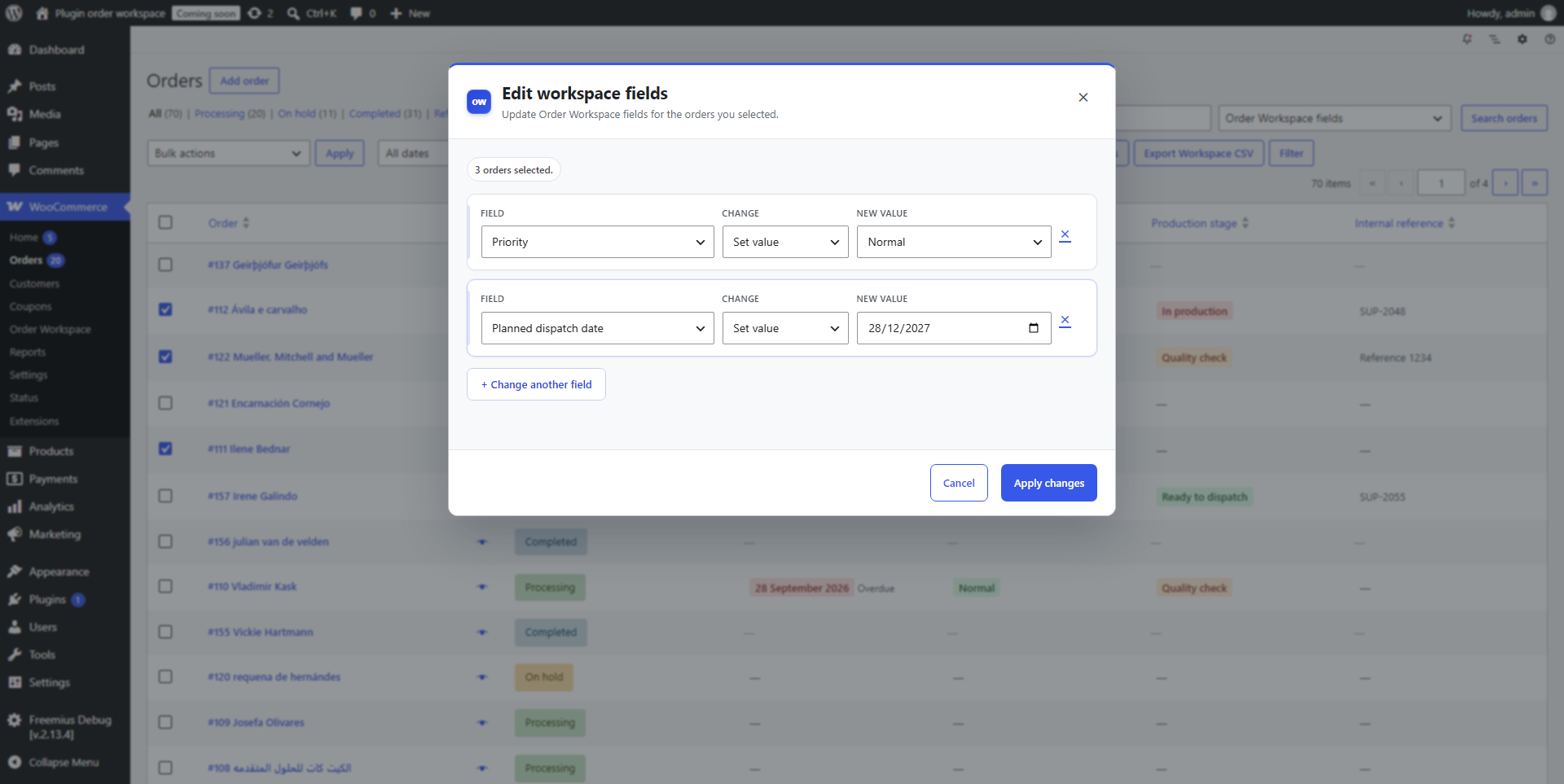
Change multiple Workspace fields across a selection of orders.- Select up to 100 orders in the Orders list.
- Choose Edit Workspace fields from the bulk actions and click Apply.
- Choose a field, change action and value.
- Use Change another field to add more changes, up to 10 fields.
- Click Apply changes and review the results.
Multiple Filters
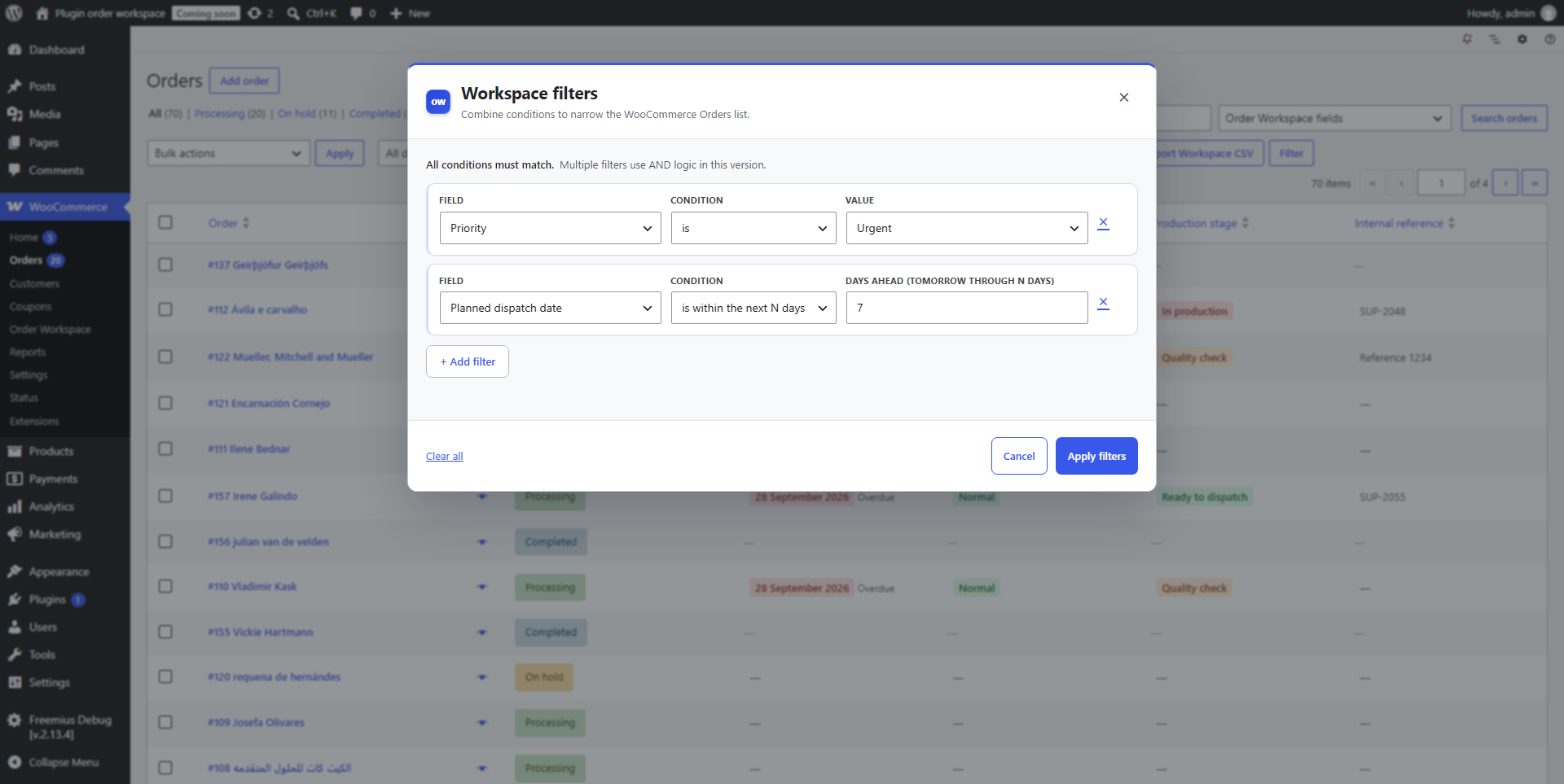
Combine up to 10 Workspace conditions to focus on the orders you need. All conditions must match (AND logic).- Click Workspace filters in the Orders toolbar.
- Choose a field, condition and value.
- Click Add filter to add another condition.
- Click Apply filters.
Relative date filters
Date conditions include today, before today, tomorrow and the next N days. Calculations use the store timezone. The next N days starts tomorrow and ends N calendar days from today. It does not include today. Relative conditions remain relative when saved in a view, so a next-seven-days view updates as time passes.Saved Views
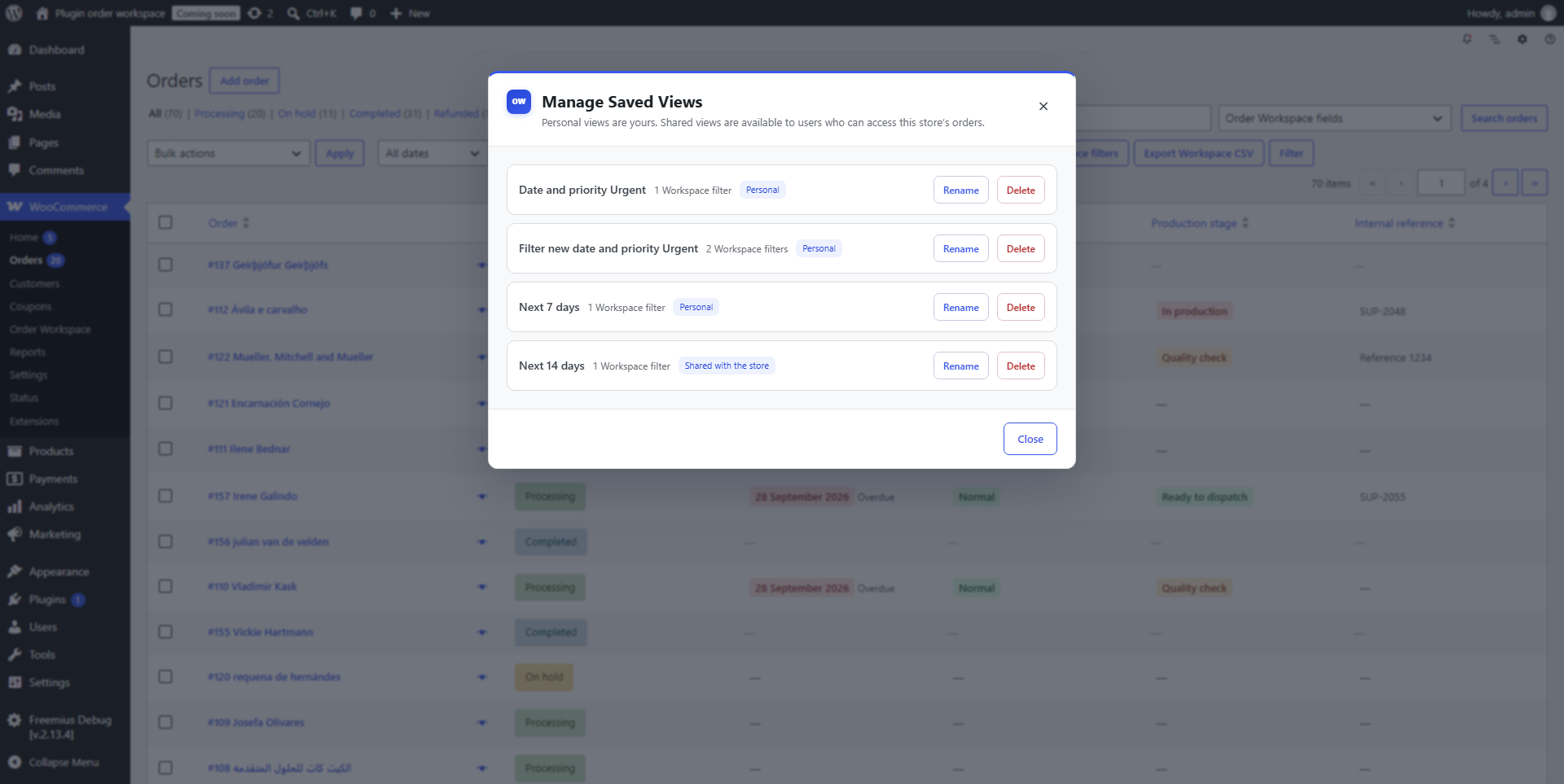
Save useful Workspace filter and order-status combinations and reopen them without rebuilding the same setup.- Personal views are private to your account.
- Shared views are available to users who can access your store’s orders. Creating or changing shared views requires WooCommerce management permission.
Date Indicators
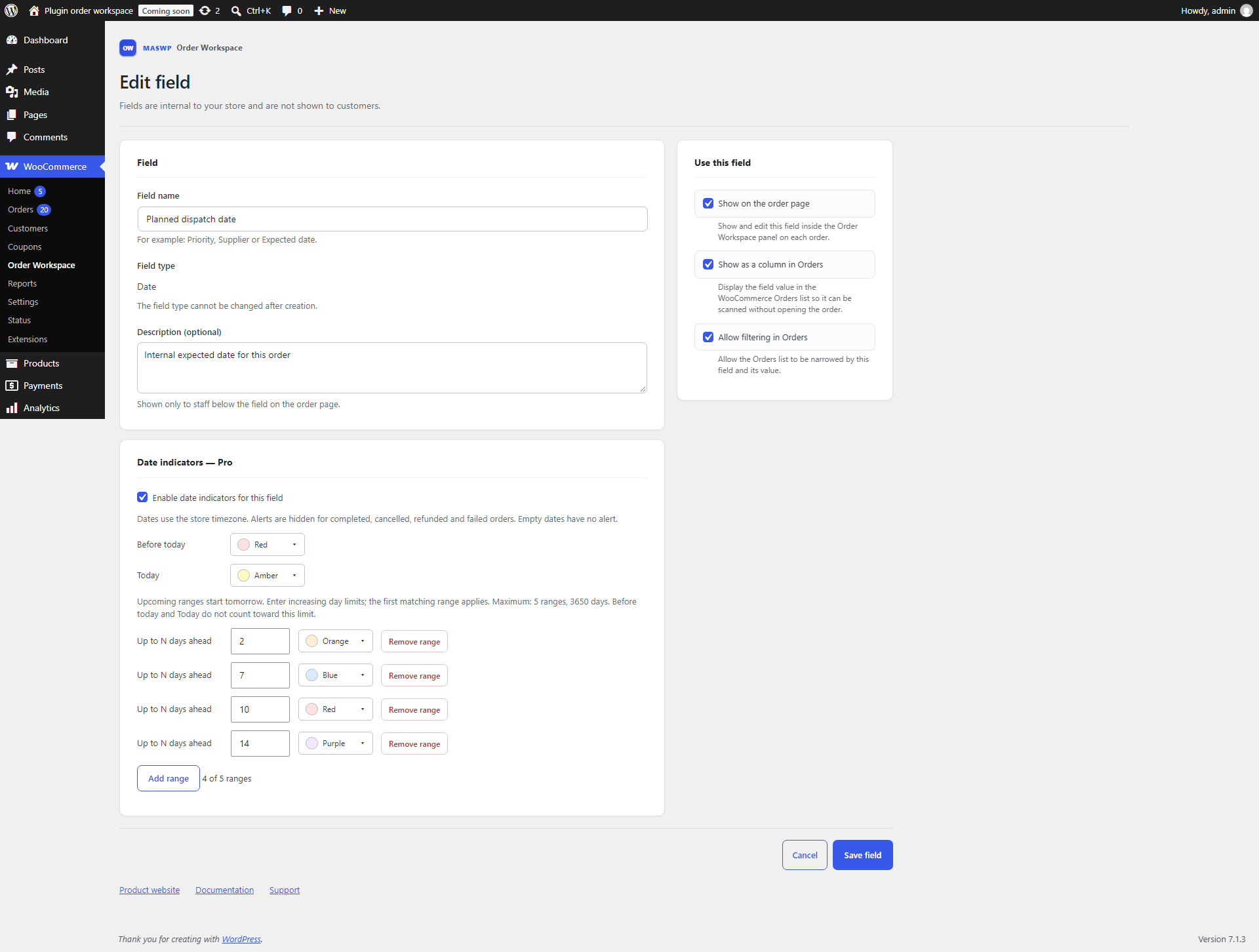
Highlight overdue dates, today and upcoming deadlines with configurable colors and readable labels.- Go to WooCommerce → Order Workspace and edit a Date field.
- Under Date indicators — Pro, enable date indicators for the field.
- Choose optional colors for Before today and Today.
- Add up to five upcoming ranges, with increasing day limits and a color for each range.
- Click Save field.
How upcoming ranges work
Upcoming ranges start tomorrow. The first matching range applies. For example, with limits of 2 and 7 days:- Dates 1–2 days ahead use the first range.
- Dates 3–7 days ahead use the second range.
Workspace CSV Export
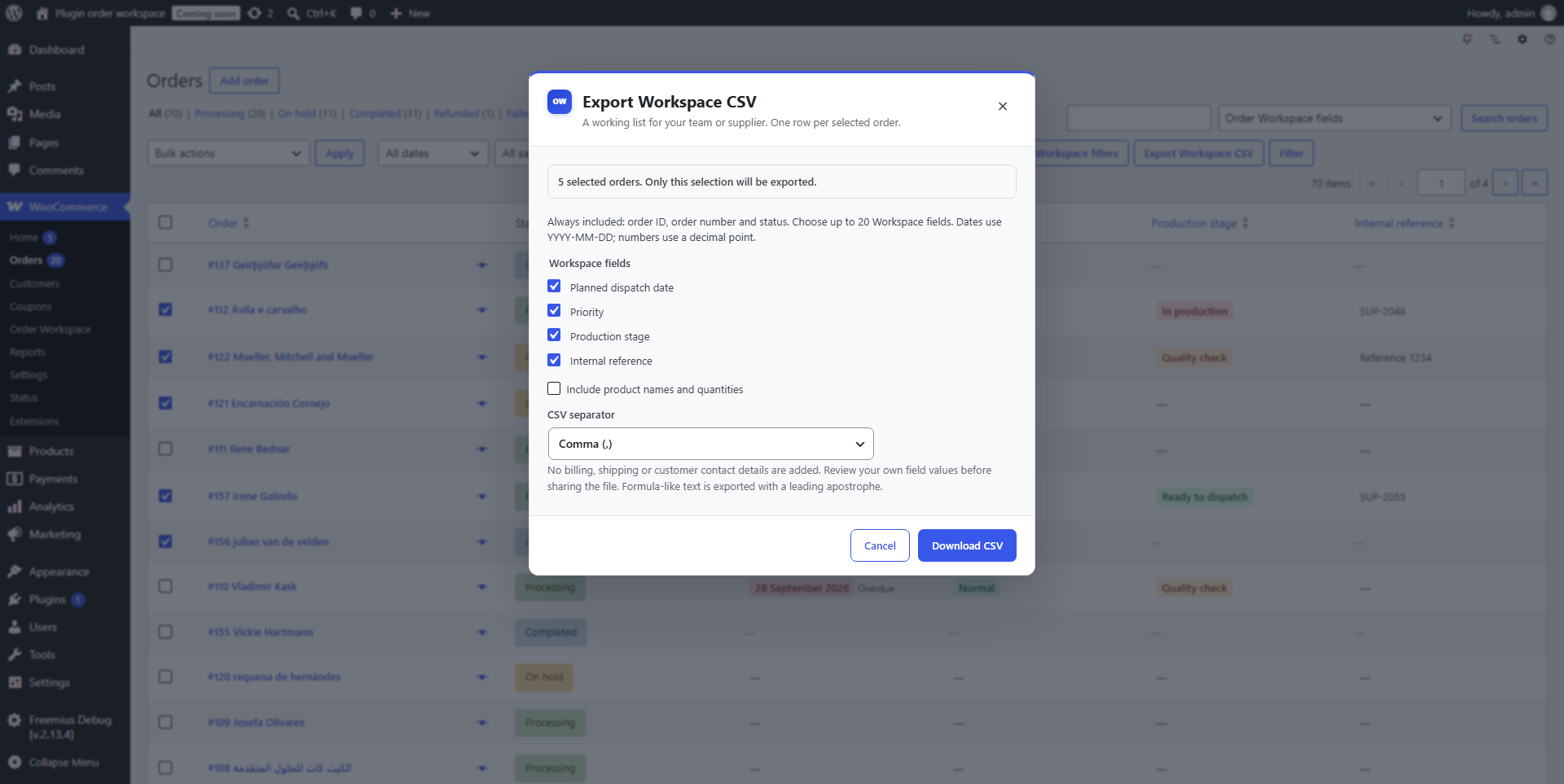
Download a working order list for your team or supplier, using the Workspace fields you choose.- Select 1–100 orders in the Orders list.
- Click Export Workspace CSV.
- Choose 1–20 active Workspace fields.
- Optionally enable Include product names and quantities.
- Choose a comma or semicolon separator.
- Click Download CSV.
- Select values use readable labels, including retired options.
- Empty Workspace values remain empty.
- Dates use YYYY-MM-DD.
- Numbers use a decimal point.
- The file uses UTF-8 and has a maximum size of 2 MiB.